
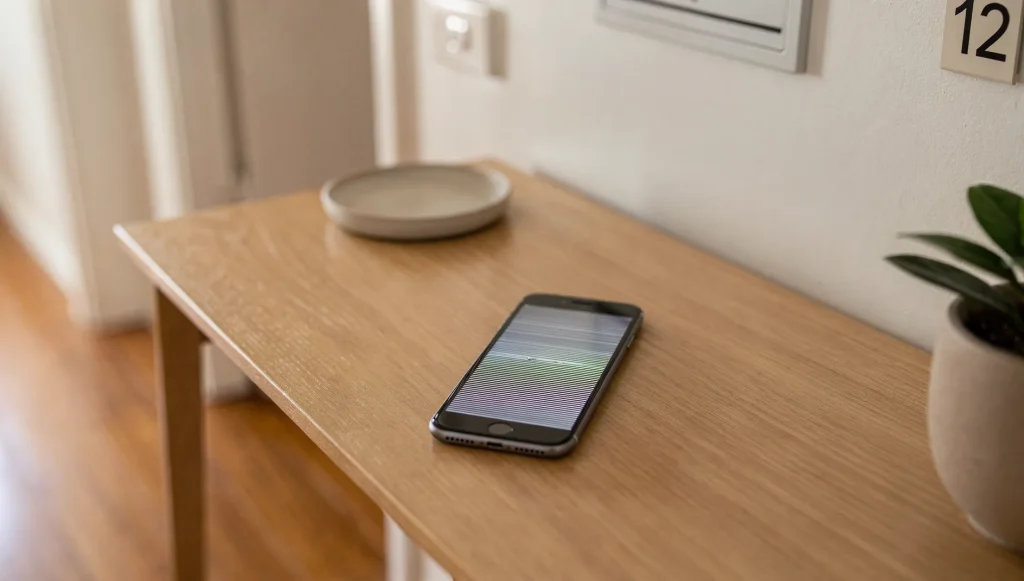
Few things rattle you like turning on your phone and seeing it flash, shimmer, or show stripes running down the display. Before you panic, it helps to know that a phone screen flickering or showing lines can stem from something as simple as a brightness setting or as serious as a failing display panel. Knowing the difference tells you whether a quick fix will do or whether it’s time to talk to screen replacement specialists. This guide walks you through how to self-triage the problem at home.
Prefer to watch or listen?
Listen onApple Podcasts
What Flickering and Lines Actually Look Like
The visual pattern often hints at the cause. A full-screen flicker, where the whole display pulses or the brightness wobbles on its own, frequently points to a software or brightness setting rather than broken hardware.
Vertical or horizontal lines are a different story. Thin coloured or black lines that run edge to edge usually suggest a problem with the display panel or the connector feeding it. Blotches of colour, a washed-out area, or a section of the screen that looks frozen while the rest works can also point to physical damage.
None of these patterns is a guaranteed diagnosis on its own, but noticing which one you have gives you a solid starting point.
Software Causes and Simple Troubleshooting Steps
Plenty of flickering issues are purely software, and you can rule those out in a few minutes. Work through these before assuming the worst:
- Check brightness and auto-brightness. Auto-brightness constantly adjusts to the light around you, which can read as a flicker. Turn it off and set a fixed brightness to see if the pulsing stops.
- Restart the phone. A simple restart clears temporary glitches that can make the display misbehave. It’s the single most effective first step.
- Boot into safe mode. Safe mode loads the device with only its core software and no third-party apps. If the flickering disappears in safe mode, a rogue app is almost certainly the cause.
- Check for a pending software update. An out-of-date operating system can cause display bugs that a later update fixes.
If the screen behaves normally after any of these steps, you’ve likely found a software issue and no repair is needed.
Hardware Causes Behind a Flickering or Lined Display
When software checks don’t help, the problem usually sits in the hardware. The most common triggers are:
- Impact damage. A drop or knock can disturb the display even when the glass looks intact. Internal components are more fragile than the surface suggests.
- A loose or damaged display flex connector. A thin ribbon cable links the screen to the phone’s board. If it works loose or gets damaged, you’ll often see lines, flicker, or a screen that cuts in and out.
- A failing display panel. After years of use, pressure in a tight pocket, or heat, the panel itself can start to degrade and show permanent lines or dead areas.
These faults don’t resolve themselves. In fact, they tend to spread as the damaged component keeps deteriorating.
How to Tell a Software Issue From a Hardware Issue
Here’s a practical way to separate the two. Run through it in order:
- Use safe mode. If the fault vanishes in safe mode, it’s software. If it stays, suspect hardware.
- Judge the consistency. A fault that comes and goes randomly, or only after an app opens, leans software. A fault that’s always present leans hardware.
- Gently flex or press the phone. If the lines or flicker change when you lightly press near the edges or twist the body a fraction, that points to a loose connector or damaged panel. A software bug won’t react to physical pressure.
This simple sequence gets most people to a confident answer without any tools.
When Flickering or Lines Mean the Screen Needs Replacing
Some signs make it fairly clear the display or connector is physically failing. Permanent vertical or horizontal lines that never clear, colour distortion in a fixed area, flicker that responds to pressure, and a screen that drops out when you move the phone all suggest the hardware is the culprit.
Continued use can make these faults worse. A marginal connector can work fully loose, and a struggling panel can lose more of its surface over time. If a technology like the difference between OLED and LCD panels is involved, the way a fault spreads can differ, but the principle is the same: a physically failing display rarely recovers.
At that point, a professional assessment is the sensible move so the right part can be fitted and the fault stops spreading.
Display faults are only one way a screen can let you down. Sometimes the picture looks perfectly clear, yet the glass stops reacting to your fingers altogether. That’s the next layer worth checking, because a screen that no longer responds to touch has its own set of causes and tell-tale signs. If your display itself is physically failing, though, a proper assessment remains the smart next step.